
The short version
Explore is the map. Tap a pin to open a spot. Tap the heart to save it. Press and hold almost anything (a spot detail, a comment) to fix it, reply to it or report it. Everything about you lives under Profile, and the gear up top opens Settings.
Getting started
The first few minutes
When you open PleinScout for the first time you'll get a short tour. It's worth the thirty seconds, but if you skip it you can always watch it again from Profile › gear › Replay Intro.
Not ready to make an account? That's fine. You can look around as a guest and see the five spots closest to you. Make a free account when you want to see the rest of the map, save spots, or post a painting.
Setting up your account
After you sign up, PleinScout asks a few friendly questions: your name, where you usually paint, and your website or Instagram if you'd like to share them. Every one of those is optional. You'll also choose what other painters can see on your profile. Your email is hidden unless you turn it on.
You'll be offered a 14-day free trial of Pro at the end. Take it or tap Not now; nothing changes about the free app either way.
The five buttons at the bottom
The bar along the bottom of the screen is how you get everywhere. The big green button in the middle is the map, because that's where most painting days start.
- Feed: paintings and notes from painters near you and from your Easelmates.
- Favorites: the spots you've saved.
- Explore: the map of painting spots.
- Outings: a calendar of paint-outs, yours and public ones nearby.
- Profile: your page, your notifications, and Settings.
TipIf you use large text on your iPhone, press and hold a tab button to see a bigger label for it.
Explore: the map
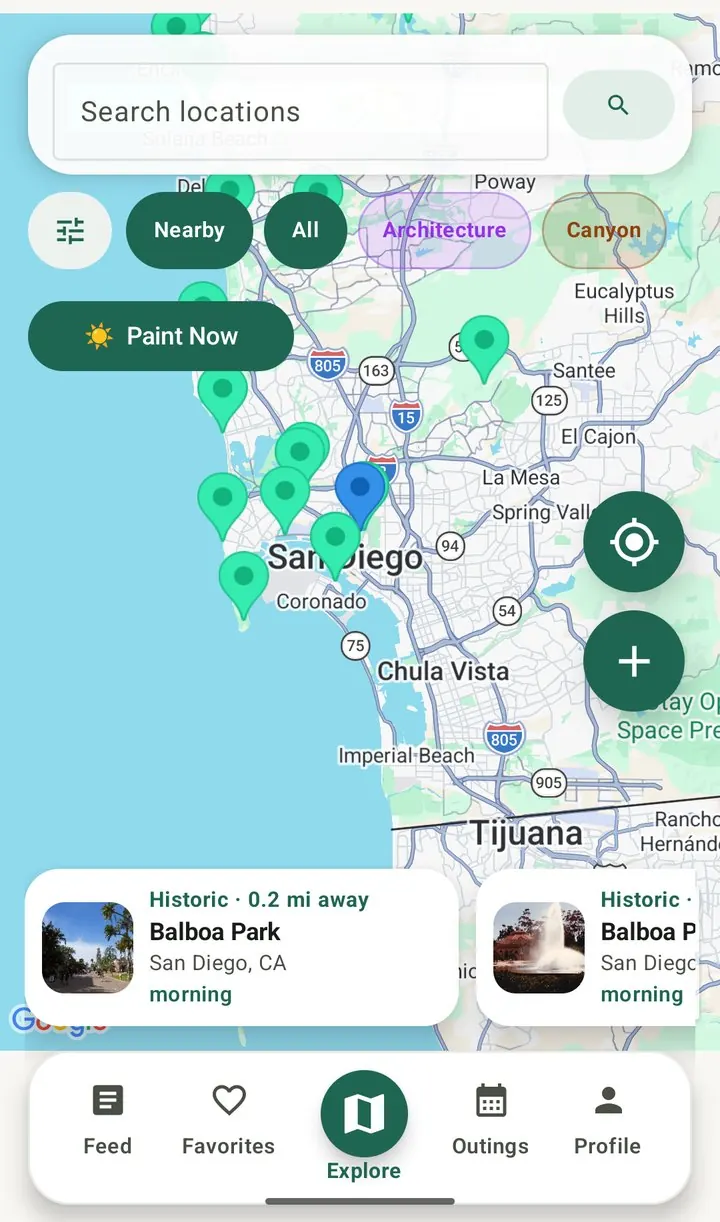
Every pin is a place a painter thought was worth an afternoon. The little icon on each pin tells you what kind of place it is: coastal, harbor, garden, desert, canyon, urban, overlook and so on.
Moving around
- Pinch and drag like any map, or use the + and − buttons.
- The locate button brings you back to where you're standing.
- The cards along the bottom follow the map. Swipe through them, then tap one to open the spot.
- Looking for somewhere specific? Type a town, park or address into Search locations at the top.
Narrowing it down
Tap a category chip under the search bar (Coastal, Garden, Urban…) to show only that kind of spot. Tap it again to see everything.
The Filters button opens Filter & Sort. Sort by nearest, top rated or name, and filter for the things that make or break a session: has shade, restroom nearby, benches or seating, free, not crowded, a short walk (about 5 minutes), and beginner-friendly. When you're happy, tap Show. Reset clears it all. The field filters are part of Pro.
Paint Now
Got a free hour and no plan? Tap Paint Now on the map. It looks at spots within about 50 miles and puts the ones with good light right now at the top. There's a Safety Check-in button right there too, for when you're heading out the door.
Spot details
Tap any pin or card and the spot opens. At the top you'll see the photo, the name, how far away it is, and a row of buttons:
- Directions opens your maps app.
- Save (the heart) adds it to Favorites.
- Plan Outing starts a paint-out here.
- Check-in starts a Safety Check-in from this spot.
Below that, three tabs:
Conditions
Everything about the day: live weather and wind (with gusts, because a gust is what tips the easel), the sun's position, sunrise and sunset, and your morning and evening golden hours. Coastal spots also show the next high or low tide from the nearest station.
Want a nudge? Tap Remind Me and pick 15, 30 or 60 minutes before golden hour, or tap Add Golden Hour to Calendar. Track Session starts a painting timer (more on that below).
Artwork
This is the "painted here" wall: paintings other people made at this spot, plus questions and notes. It's the best way to see what a place actually looks like in paint. Tap Add Painting to put yours up (see posting a painting).
Details
The practical stuff painters wish they'd known: parking, the walk in, shade, restrooms, seating, crowds, cost, permits, accessibility, safety notes, and the best light. These come from painters who've been there, so the more people add, the better they get.
At the bottom you can rate the spot (tap a star) and Verify it if the details still look right. That little check tells the next painter the info is fresh.
Something's wrong or missing?
Spots get better because painters fix them. There are three easy ways to help:
- Blank detail? Tap Add info to fill it in.
- Wrong detail? Press and hold it. A "Suggest a Change" form opens with that detail already filled in, so you only type the fix.
- Better photo? Tap Help improve this cover photo at the bottom to suggest your own.
Parking
Free lot, fills by 9 a.m.
Suggest a Change
Parking · Free lot, fills by 9 a.m.
Lot is paid now, $5 all day
Every suggestion goes to a real person who checks it before it changes the spot. You can follow along in Profile › gear › Tickets.
Favorites
Tap the heart on any spot to save it. Your saved spots live in the Favorites tab, ready for the next free morning. Tap the heart again to let one go.
The free app holds 5 favorites. Pro takes the limit off.
Adding a spot
Found somewhere good? Share it. On the Explore map, tap Add Spot.
- Put the pin where the easel goes. Search an address, tap Find Me to use where you're standing, or drag the map until the pin is exactly right. Think of where a painter should actually park their stool, not just the park entrance.
- Tell people about it. Give it a name, pick a category, add a cover photo, and fill in whatever you know: parking, shade, the walk, the best light. Fill in what you can. Someone else can add the rest.
- Save.
If the spot looks like one that's already on the map, PleinScout will say so, so we don't end up with three pins on the same pier.
Private spotsWant to keep a place to yourself? Turn off Share publicly and only you (and anyone you share it with) can see it. Private spots are part of Pro. If you post a painting from a private spot, other painters see "Private spot" instead of its name.
Changed your mind later? Open your spot and tap Edit Spot Details, or delete it from the same place.
Posting a painting
Open the spot where you painted, go to the Artwork tab, and tap Add Painting. Add a photo, the medium, a few words about the day, and whether you'd paint there again. A few choices:
- This Is My Artwork saves it to your own gallery on your profile.
- Share to the community feed puts it in the Feed too.
- Painted somewhere private? Post Photo Publicly Without Location shares the painting without giving the spot away.
The Feed
The Feed is where painters share work, studio notes and questions. The tabs along the top: All (everything, and where the Feed opens), Local (painters near you), Easelmates (just the people you've connected with) and Your spots (posts from spots you've saved). Your own posts always show in All and Local, wherever you painted.
- Tap Share a painting... at the top of the Feed (or on your Profile) to make a New Post. Write a caption, add a photo with Camera or Photo Library, and if you like, tap Add a Spot to tag where you painted. Only public spots show up there, so a private spot is never given away. Then tap Post.
- Want to keep one to yourself? Pick Private under the photo before you post. Only you see it, on your profile and in your own Feed. Private posts are free for everyone.
- Tap the heart to like something, and the speech bubble to comment.
- Tap a post's photo to see it big, with every comment underneath. Scroll down to read them all and add your own.
- Type @ and a name to mention another painter. They'll get a notification.
- Tap someone's name or photo to visit their profile, and tap the location line to open the spot.
Editing or removing a post
Tap the ··· button on a post. On your own posts you'll see Edit Post and Delete Post. On anyone else's you'll see Report and Block.
Replying, editing or deleting a comment
Press and hold a comment. A menu pops up with Reply, and on your own comments Edit Comment and Delete Comment. On someone else's, you'll find Report Comment and Block.
Outings
Outings are paint-outs: a time, a place, and whoever wants to come. The Outings tab opens on a month calendar with little markers:
- ★ outings you're hosting
- ◆ outings you've been invited to
- ● public outings near you
Tap a day to see what's on, then View Details and RSVP. Let the host know if you're going, maybe, or can't make it, and use the comments to sort out where to meet, parking and who's bringing extra water. Add to Calendar puts it in your phone's calendar, and Remind me before it starts does exactly that. Change the Range to see outings farther away.
Hosting one
Tap Create in Outings, or Plan Outing on any spot. Pick the spot (or type an address), the start and end time, and add some notes. Leave Open to the public on and painters nearby will see it. If you host it, you can come back any time to Edit Outing or Cancel Outing.
Private outings with an invite list are part of Pro.
Safety Check-in
Painting alone is lovely until something goes sideways. Before you head out, open a Safety Check-in from a spot's Check-in button, from Paint Now, or from Profile › gear › Safety Check-in.
Add your location, when you plan to be back, and a note if it helps (the trailhead, where you parked). Then tap Share Check-in and send it to a friend by text or any app you like. PleinScout doesn't watch the clock for you, so pick someone who will.
Please rememberPleinScout isn't an emergency service. If you're in danger, call 911.
The painting timer
From a spot's Conditions tab, tap Track Session. Hit Start when the brush touches the paper and Stop when you're done. While it runs you can set Remind Me for 15, 30 or 60 minutes before sunset, so the light doesn't sneak away from you, or add the session to your calendar.
Pro tools
These live in Profile › gear › Tools. They're part of PleinScout Pro, and if you don't have Pro yet, tapping one shows you what it does and how to start a free trial.
Value Map
Squint less. Take a photo with Camera or pick one from your Library, and Value Map turns it into simple shapes of light and dark. Slide between 2 and 20 values: 3 or 4 is great for a thumbnail sketch, more for a careful study. Tap either image to see it full screen, and Save Both to Photos keeps the original and the value version together.
My Paint Map
Every painting you've posted, pinned where you painted it. It's a lovely way to look back on a season. Tap Fit all to see them all at once, and tap a pin to see the paintings from that spot or open the spot itself.
Paint Window Planner
Pick a spot and a date and the planner works out the best hours to paint there: the light, the weather and whether the spot's ready for you. Save Offline keeps a "field pack" of the plan on your phone for places with no signal, and Copy or Share sends it to a friend. The planner is on iPhone first; Android is on its way.
Your profile
Your profile is your page: your photo, name, Palette level, and the paintings, spots and posts you've shared. Up in the corner are two buttons:
- The bell opens your notifications: comments, likes, mentions, Easelmate requests and outing news. Tap one to jump straight to it. When you close the list, everything in it counts as read, so the bell only lights up for something new.
- The gear opens Settings.
Founding Scouts wear a small Founder badge on the corner of their profile photo, on their own profile and wherever other painters see it. It's yours for good. You can swap it for another badge you've earned (see Badges).
Everything in Settings
| Where | What it's for |
|---|---|
| PleinScout Pro | Start a trial, upgrade, restore a purchase, add a creator code, or manage and cancel your plan (how to cancel). |
| Account | |
| Edit Profile | Your photo, name, bio, where you paint, and your links. |
| Privacy | Choose what other painters see: email, bio, location, website, Instagram, and your Palette level. Your area lets you stop sharing your general area with us (what that is). |
| Security | Your password and sign-in, including optional two-step sign-in on iPhone. |
| Notifications | What you hear about, and which ones buzz your phone. PleinScout news and offers is on for everyone now; switch it off here anytime. |
| Shop Discount Founders | Your 20% off in the PleinScout shop (Founding Scouts and Field Kit buyers), and which email the shop knows you by. How it works. |
| Tools | |
| Safety Check-in | Share where you are and when you'll be back. |
| My Paint Map Pro | Your paintings on a map. |
| Value Map Pro | Turn a photo into simple lights and darks. |
| Paint Window Planner Pro | The best hours to paint your spots this week. |
| Community | |
| Easelmates | Invite painters and manage your connections. |
| Palette Points | Your level and how to earn more. |
| Tickets | Spot fixes and reports you've sent, and where they stand. |
| App | |
| Replay Intro | Watch the quick tour again. |
| About | Version, support, privacy and terms. |
| At the bottom | |
| Sign Out | Signs you out on this phone. |
| Delete Account | Set apart below Sign Out so you can't tap it by accident. Permanently removes your account. More about this. |
Easelmates
Easelmates are the painters you want to keep up with. Visit someone's profile and tap Send Request; once they Accept, you'll see each other's work in the Easelmates side of the Feed. Star someone as a Favorite Easelmate to keep them at the top. You can invite friends who aren't on PleinScout yet from Settings › Easelmates.
Palette Points
You earn Palette Points for helping the map grow: adding a spot (more for a photo and good details), posting a painting (more if you add notes), commenting, and fixing spot info. They add up to levels, from Blank Canvas through First Brush, Field Sketcher, Color Chaser, Light Hunter, Easel Explorer, Local Colorist, Map Maker and Easel Guide, all the way to Master Scout. It's just for fun. You can hide your level in Privacy if you'd rather.
Badges
Badges are like scout patches you earn by getting out and painting. Each one levels up from Bronze to Silver, Gold and Diamond as you do more. They're counted from what you actually do: paintings you log (with a badge for each medium, from watercolor and oil to ink and line & wash), public spots you add, posts you share, Easelmates, outings you go to, and Palette Points.
Your badges are on your profile, under Badges. Tap See All Badges to see every one and how close you are to the next level. Tap a badge you've earned, then Show on My Profile, and it sits on the corner of your profile photo for other painters to see. One at a time; tap Remove from My Profile to take it off. Badges are free for everyone.
Press, hold and other hidden tricks
A few things in PleinScout don't have a button, because they'd clutter the screen. Here they all are in one place.
| Do this | On | And you get |
|---|---|---|
| Press & hold | Any spot detail (Parking, Shade…) | Suggest a Change, already filled in |
| Tap | "Add info" on a blank detail | Fill in what's missing |
| Press & hold | A comment | Reply, Edit, Delete, Report or Block |
| Tap ··· | A post or painting | Edit, Delete, Report or Block |
| Tap ··· | Someone's profile | Report or Block that painter |
| Tap | A name or photo | Their profile |
| Tap | The location line on a post | The spot it was painted at |
| Type @ | A post or comment | Mention another painter |
| Tap again | A selected category chip | Back to all spots |
| Press & hold | A tab button (large text on) | A bigger label |
Using VoiceOver? Press and hold doesn't work there, so the same actions are in the Actions rotor on each detail and comment.
Reporting and blocking
Most painters are wonderful. For the rare exception, every spot, post, painting, comment and profile has a Report option, and a real person reads every report. If someone's bothering you, Block them and you won't see their spots, posts or comments anymore. Spots have a Report This Spot menu at the bottom of Details, for anything unsafe or off-limits. Our community guidelines explain what's not OK.
What's free and what's Pro
The free app is a real app, not a teaser: the whole map of pins, full details for spots near you, today's weather, sun and tides, Safety Check-in, 5 favorites, adding spots, public outings and the Feed. Pro adds the planning and studio tools: full details anywhere, unlimited favorites, the field filters, private spots and outings, Value Map, My Paint Map and the Paint Window Planner. There's a 14-day free trial. See the full comparison.
Lifetime Pro (Founding Scout). Until December 31, you can buy lifetime Pro once, on iPhone or Android, from Profile › gear › PleinScout Pro › Founding Scout. It's a one-time purchase, not a subscription, and it comes with the Founder badge and the shop discount below.
Already paid for Pro on iPhone and got a new phone? Go to Profile › gear › PleinScout Pro › Restore App Store Purchase. Pro that came with a field kit, a gift code or lifetime Pro from the shop is tied to your account, so just sign in.
Changing or cancelling your plan
Apple and Google handle the billing, so cancelling happens with them, but PleinScout takes you straight there. Go to Profile › gear › PleinScout Pro. Under Your plan you'll see your plan and when it renews; tap Manage or Cancel. On iPhone that opens Apple's subscription page right inside the app; on Android it opens your PleinScout subscription in Google Play. Cancel at least a day before it renews and you won't be charged again. Pro stays on until the end of the time you paid for.
Bought lifetime Pro while you had a monthly or yearly plan? The stores don't cancel the old plan for you, so PleinScout reminds you and shows the same Manage or Cancel button. Lifetime and Founder accounts see You have Pro for life and no buy buttons at all, on any phone you sign in to.
Creator codes
Came to PleinScout from a painter you follow? Their code (or their link, pleinscout.com/c/their-code) gets you 10% off your first year of annual Pro. Type it in the Creator code box when you create your account, or later under Profile › gear › PleinScout Pro. One code per account, and it can't be changed once it's saved. On iPhone, tap Redeem and enter the code Apple shows you to get the discount. The same code takes 10% off in the shop, once (it doesn't stack with the member 20%). Want a code of your own? See PleinScout Leaders.
Your Founder shop discount
Founding Scouts and lifetime Pro members save 20% in the PleinScout shop, for life. Field Kit buyers save 20% too, for as long as the year of Pro that came with their kit lasts (add lifetime and it's yours for good). There's no code to remember. Make a shop account with the same email you use in the app, sign in when you check out, and the discount comes off by itself. When your discount starts, we email you a link to make that account.
Signed in to the app with Apple and chose Hide My Email? Then the shop can't tell it's you. Go to Profile › gear › Shop Discount, type the email you use in the shop, and tap Save Shop Email. It can take up to 10 minutes to kick in after you change it. A regular Pro subscription and the 14-day free trial don't include the shop discount, and field kits themselves aren't discounted. A few makers limit how much their products can be discounted (u.go pochade boxes, for example). On those items you get the maximum allowed percentage off by vendor, such as 17%, and the product page says so.
When something's not right
The map is empty, or I only see a few spots.
A spot says it's locked, or asks me to unlock the map.
I can't open a spot someone posted from.
Location isn't working.
Do you know where I live?
I'm not getting notifications.
No weather or tides on a spot.
My photo didn't upload.
How do I delete my account?
Still stuck?
Write to us at help@pleinscout.com. A painter reads every message. Tell us what phone you have and what you were trying to do, and a screenshot never hurts.