
The short version
Go to pleinscout.com/groups/admin and sign in with your PleinScout account, or create one. Set up your group (or claim it if it’s already listed), then post paint-outs. Public paint-outs go on the PleinScout map, in nearby alerts and on the paint-outs page. Group-only paint-outs go just to the members on your roster.
Step 1
Find your group, or claim it
Open Groups in the menu. Groups are listed by state, and yours may already be there from our directory.
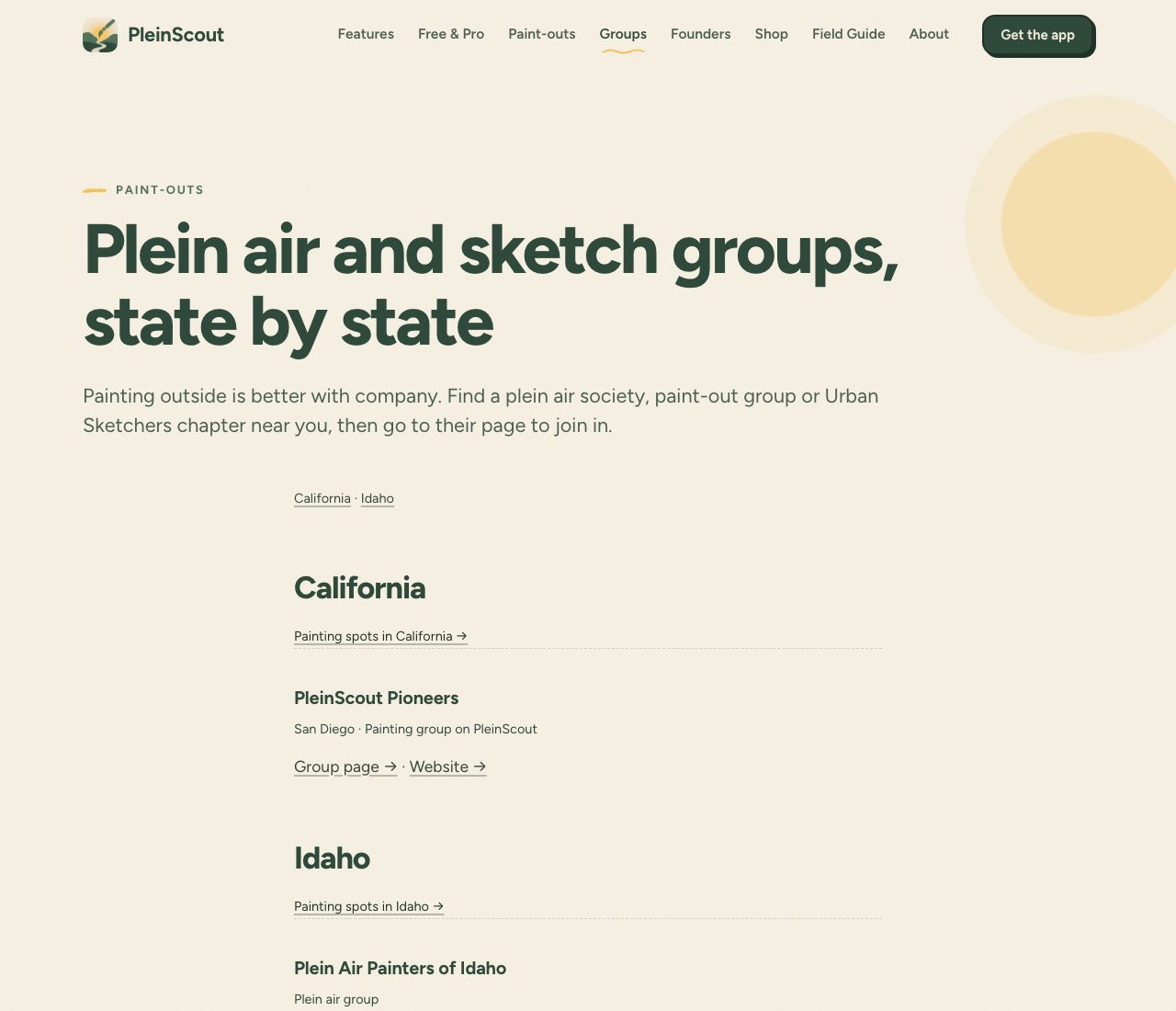
If your group is already listed
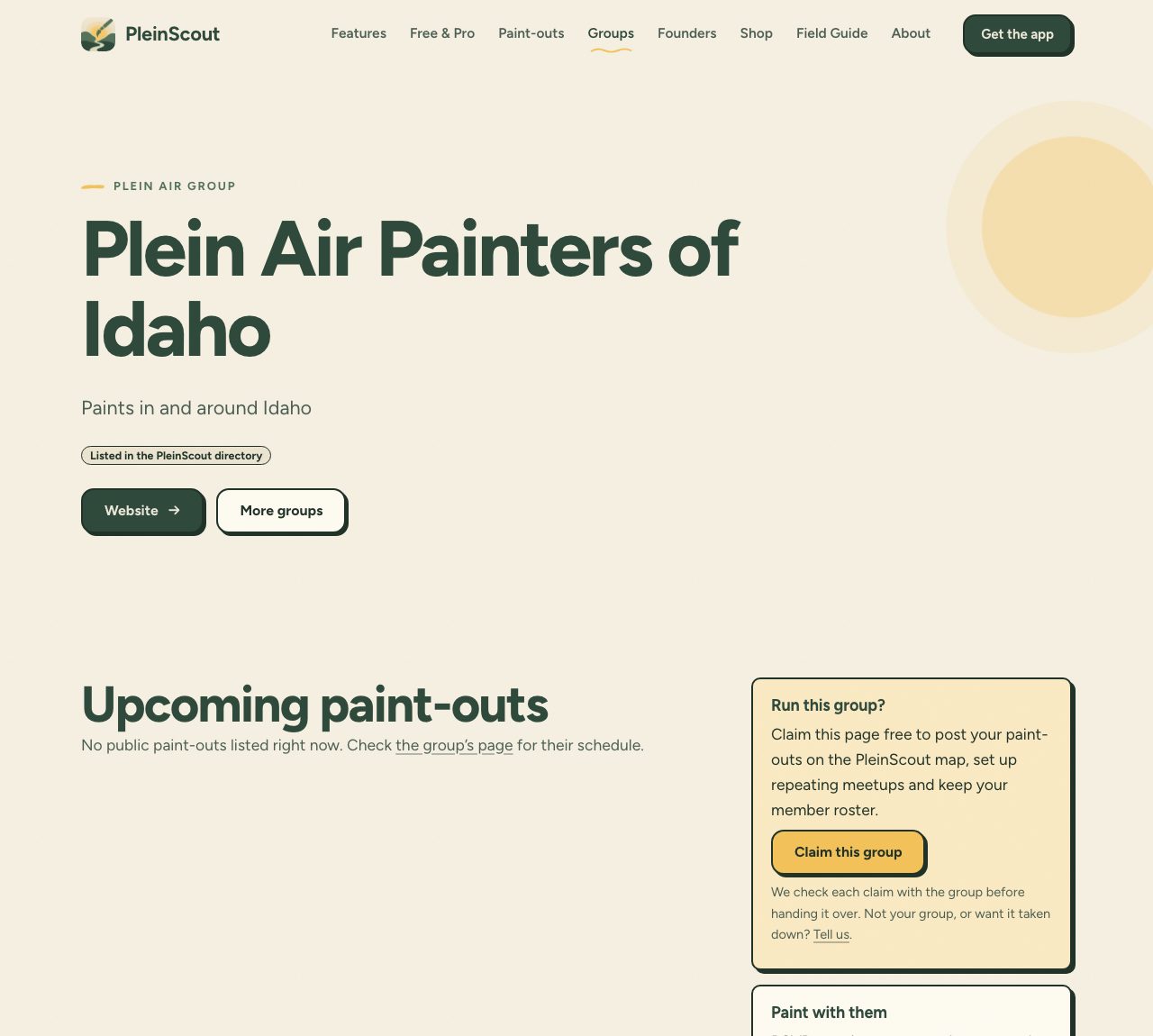
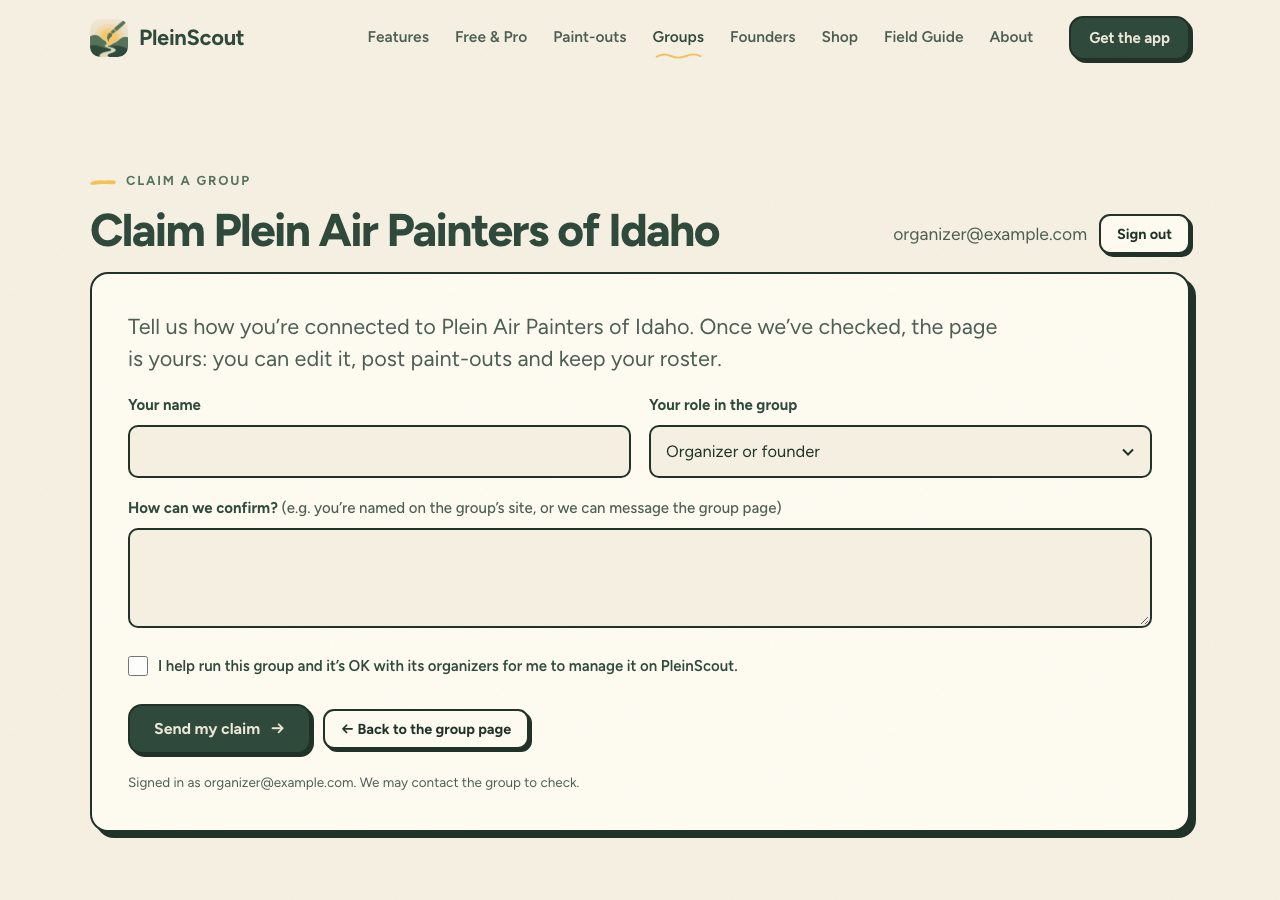
Open its Group page. Unclaimed pages show a Run this group? box. Click Claim this group, sign in or create an account (Step 2), then tell us your name, your role, and how we can confirm you help run the group.
Not listed? Skip claiming. Make an account (Step 2) and set up a new group (Step 3).
Step 2
Make an account, or sign in
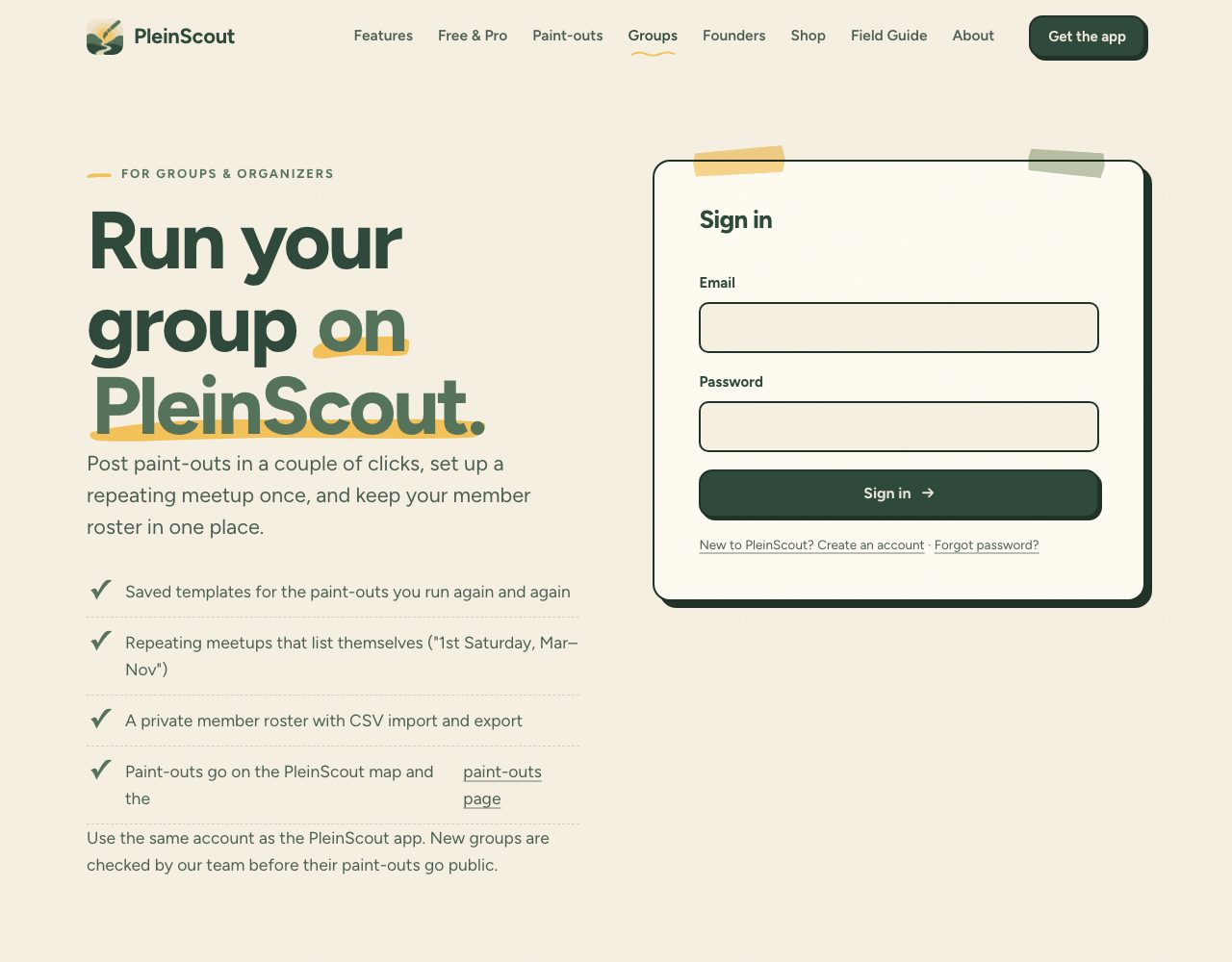
Go to pleinscout.com/groups/admin. There’s also a Group admin sign-in button on the Paint-outs page and a sign-in link on every group page.
- Already use the PleinScout app? Sign in with the same email and password. It’s one account.
- New to PleinScout? Click New to PleinScout? Create an account and enter your email, your name and a password (8 or more characters).
- Open the confirmation email we send, click the link, and you’re back on the sign-in page.
- Forgot your password? Type your email, click Forgot password? and follow the link we send.
Step 3
Set up your group
The first time you sign in you’ll see Set up your group. Fill in your group name, a few lines about the group (painters see this), city, state or province, country, your website or social link, and a public contact for questions. Tick the box and click Create group.
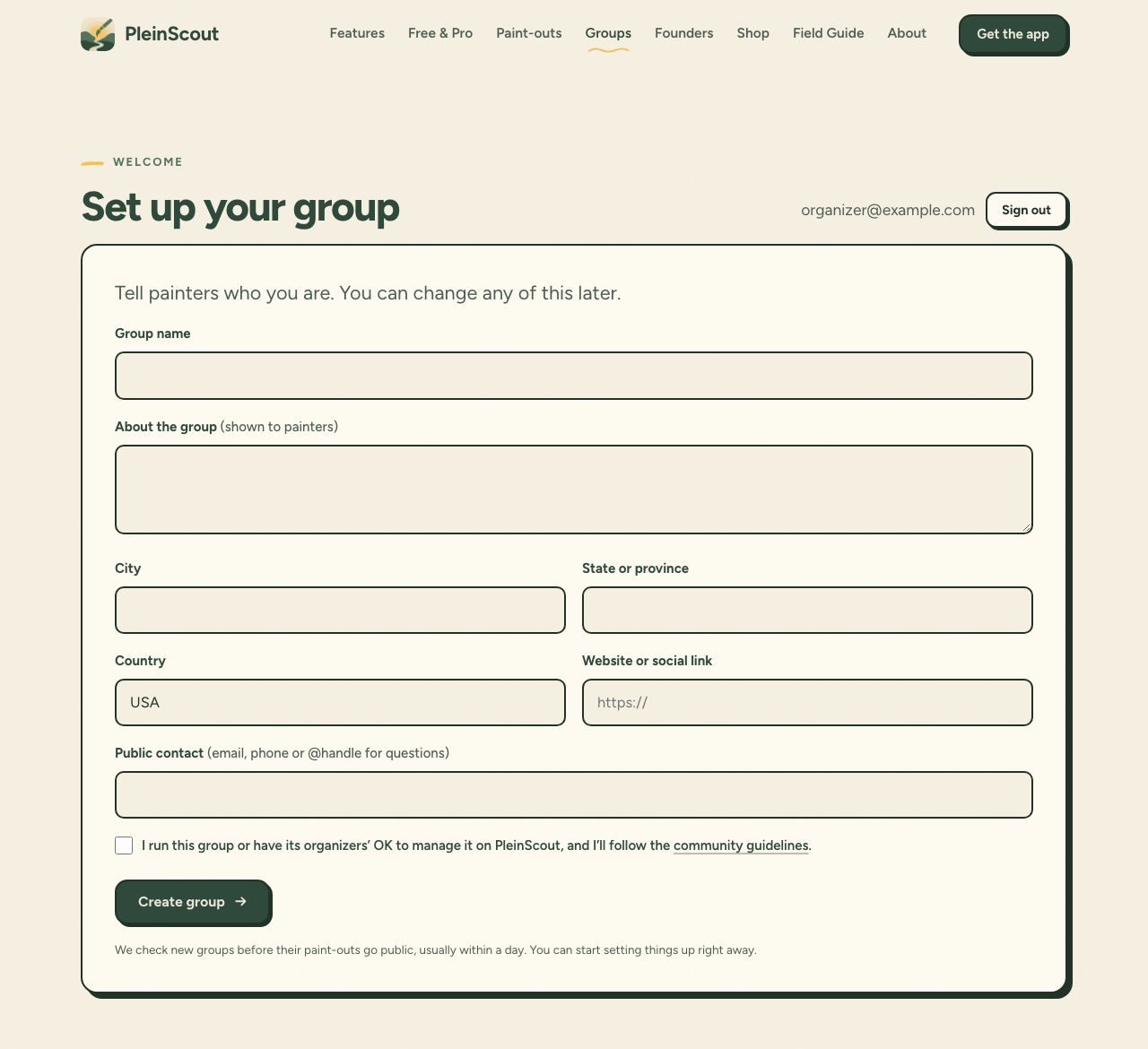
We check new groups first, usually within a day. Start setting up right away. Public paint-outs you post now are saved and go live on their own once your group is verified. Group-only paint-outs reach your members straight away.
Step 4
Post a paint-out
Your group opens on the Paint-outs tab: everything coming up, each marked Public, Group only, Waiting for review or Repeats. Every paint-out has Copy link, Who’s coming, Message, Edit and Cancel. Cancelling sends a notice to everyone who RSVP’d in the app, with your reason if you add one.
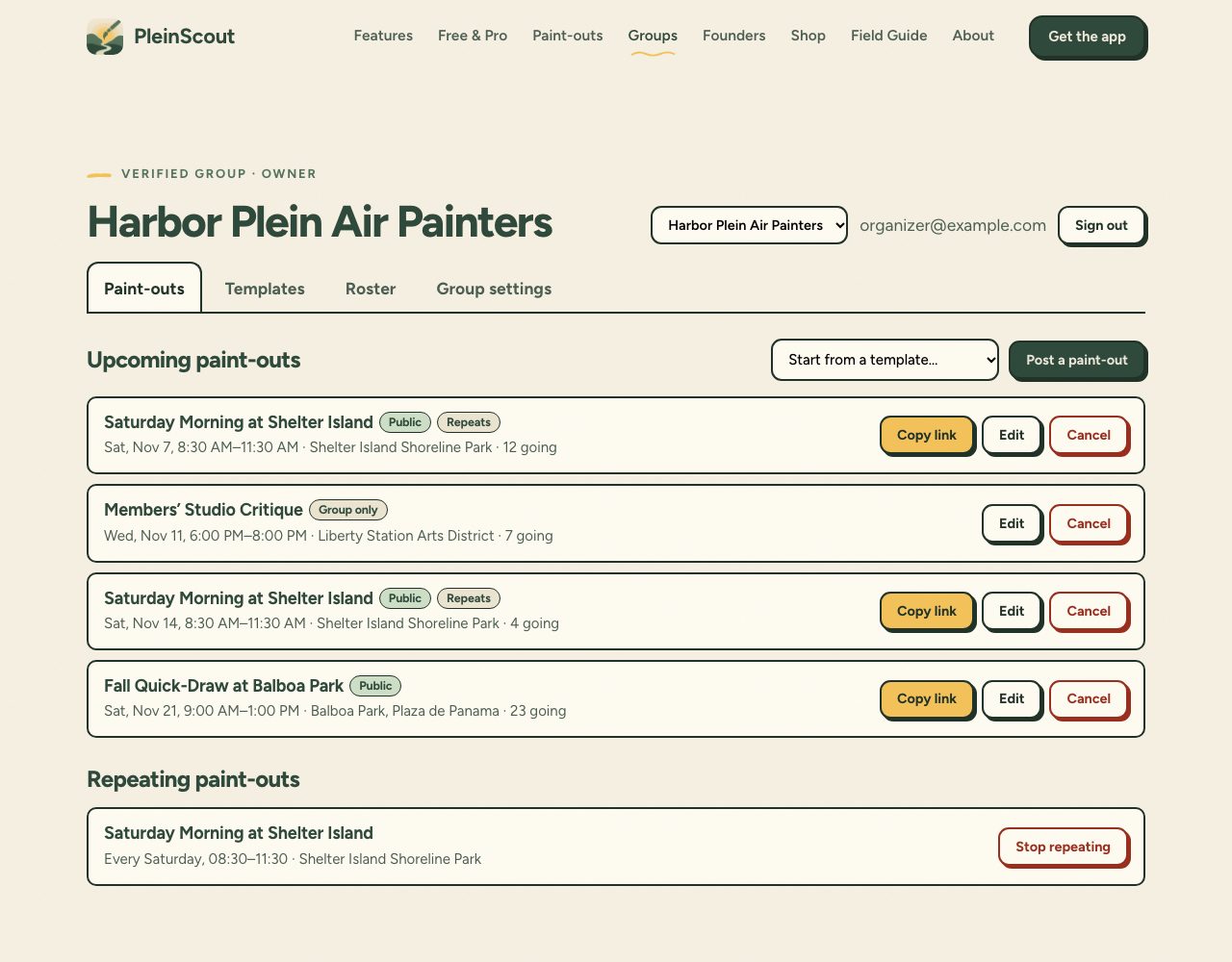
Filling in the form
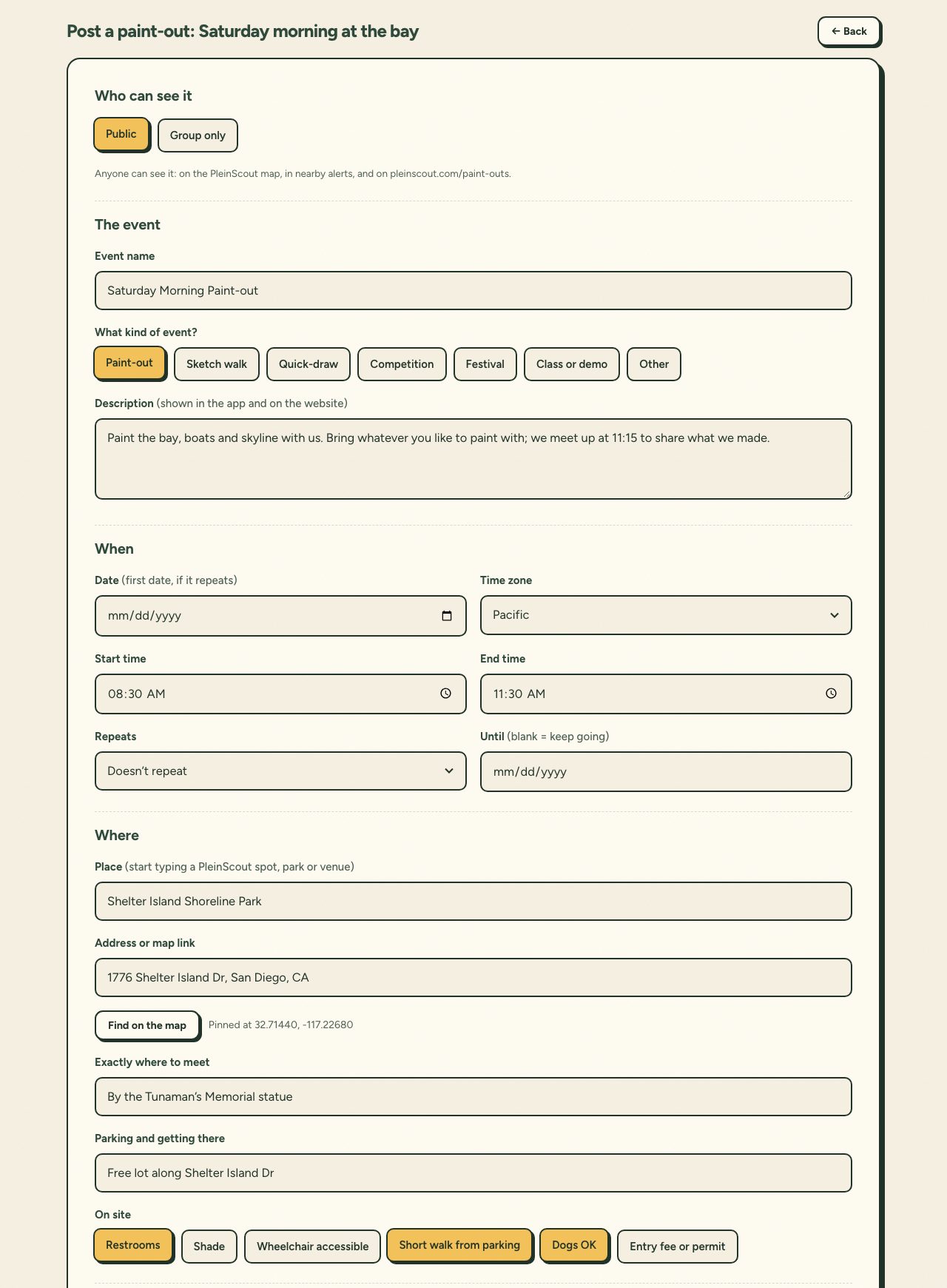
- Who can see it: Public or Group only (see below).
- The event: a name, what kind of event (paint-out, sketch walk, quick-draw, competition, festival, class) and a description.
- When: date, time zone, start and end. For a regular meetup, choose a Repeats option like “Every Saturday” or “Monthly on the 1st Saturday”, with an optional end date.
- Where: start typing in Place and pick a PleinScout spot, park or venue. That fills in the address and pins it on the map. Or paste a Google or Apple Maps link and click Find on the map. Add exactly where to meet, parking and what’s on site.
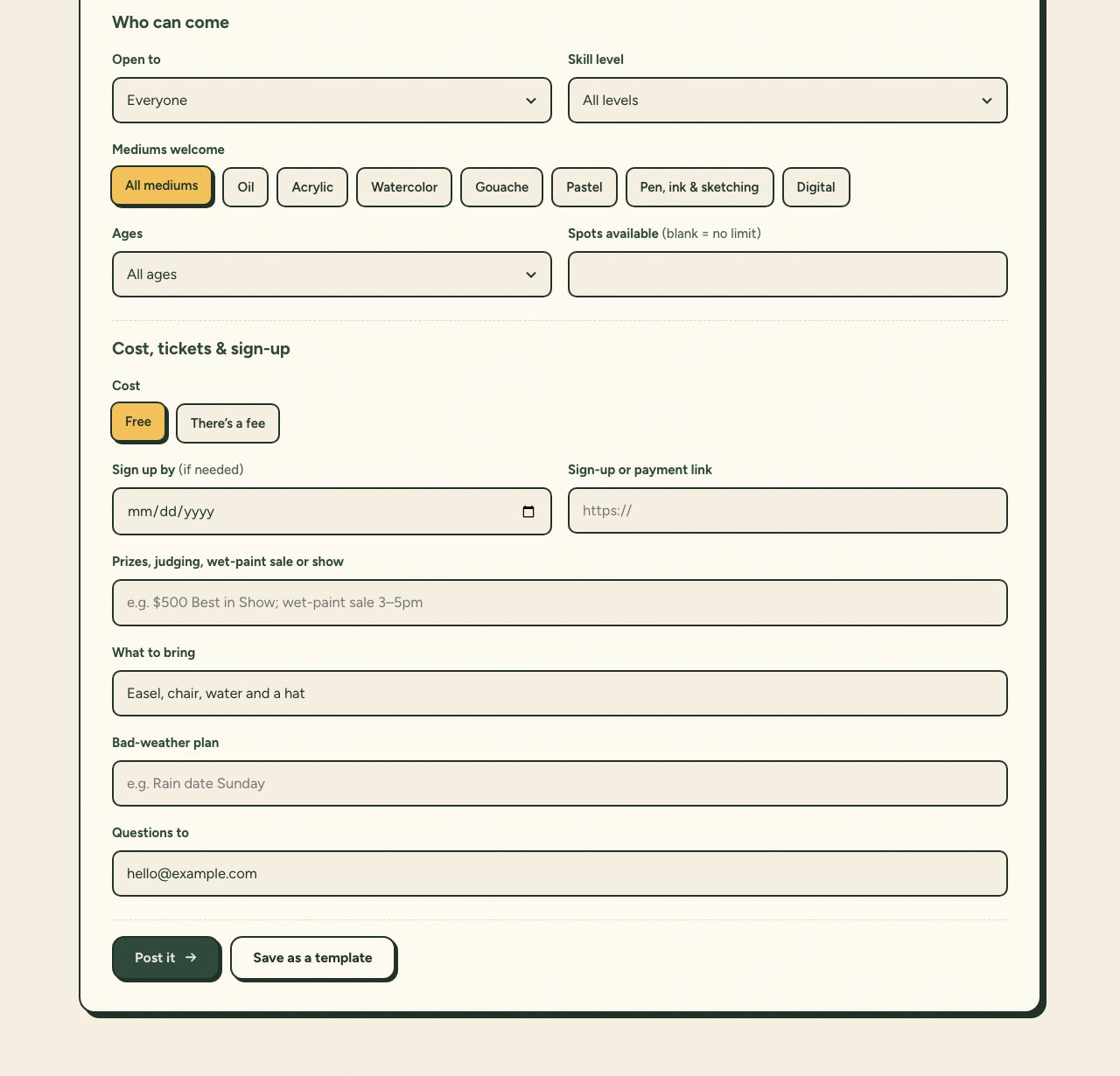
- Who can come: open to, skill level, mediums welcome, ages and how many spots.
- Cost, tickets & sign-up: free, or “There’s a fee” with one or more prices (Members $15, Non-members $25). Add a sign-up deadline, your own sign-up or payment link, prizes, what to bring, a bad-weather plan, and who to ask.
- Click Post it. Or Save as a template to reuse it.
Public
Anyone can see it: on the PleinScout map, in nearby alerts in the app, on the paint-outs page and on your group page. Use Copy link to share it.
Group only
Only your admins and the members and guests on your roster see it, in the app (matched by the email on your roster). They get a heads-up when you post. Lapsed members don’t.
Who’s coming, check-in and rain calls
- Who’s coming lists everyone who RSVP’d in the app and whether they’re on your roster. On the day, tick people off as they arrive, and check in members who turned up without RSVPing. Check-ins count as attendance on your roster. Export CSV downloads the list. Past paint-outs are under Past paint-outs at the bottom of the tab.
- Message sends a notice and a push in the app to everyone going: one tap for “Cancelled for weather”, “Moved to the rain date” or “Still on!”, or write your own. Message the group at the top goes to every current member and guest instead. People without the app don’t get these, so use Copy emails on the Roster for them.
Repeating paint-outs list their dates about three months ahead and keep topping themselves up. To end one, click Stop repeating. You can keep or cancel the dates already listed.
Step 5
Save templates for the paint-outs you run again and again
On the Templates tab, click New template and fill in everything except the date: place, meeting point, prices, what to bring, the usual time. Next time, click Post from this and just pick a date.
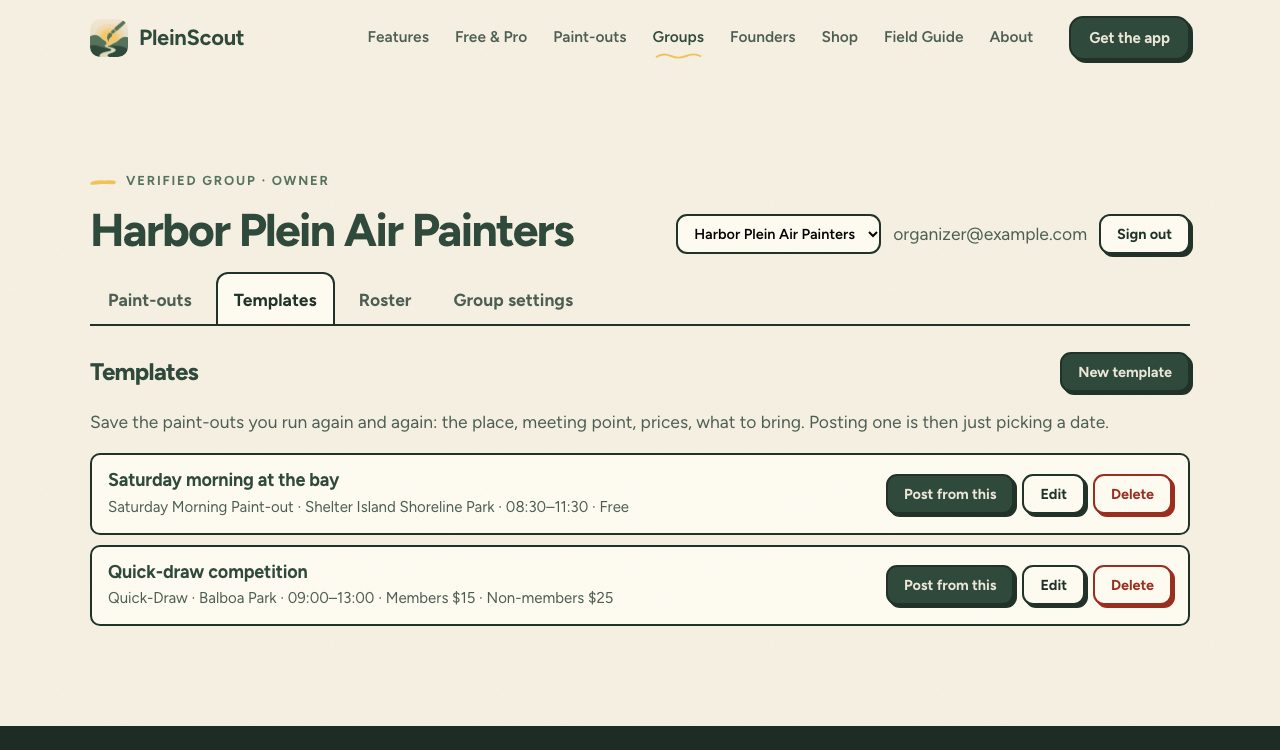
Want the same details on every paint-out, like your contact email or “All mediums”? Set them once in Group settings → Defaults for new paint-outs.
Step 6
Keep your member roster
The Roster tab is private to your group’s admins. Add people one at a time with Add a member, or bring in your spreadsheet with Import CSV. Export CSV downloads the whole list.
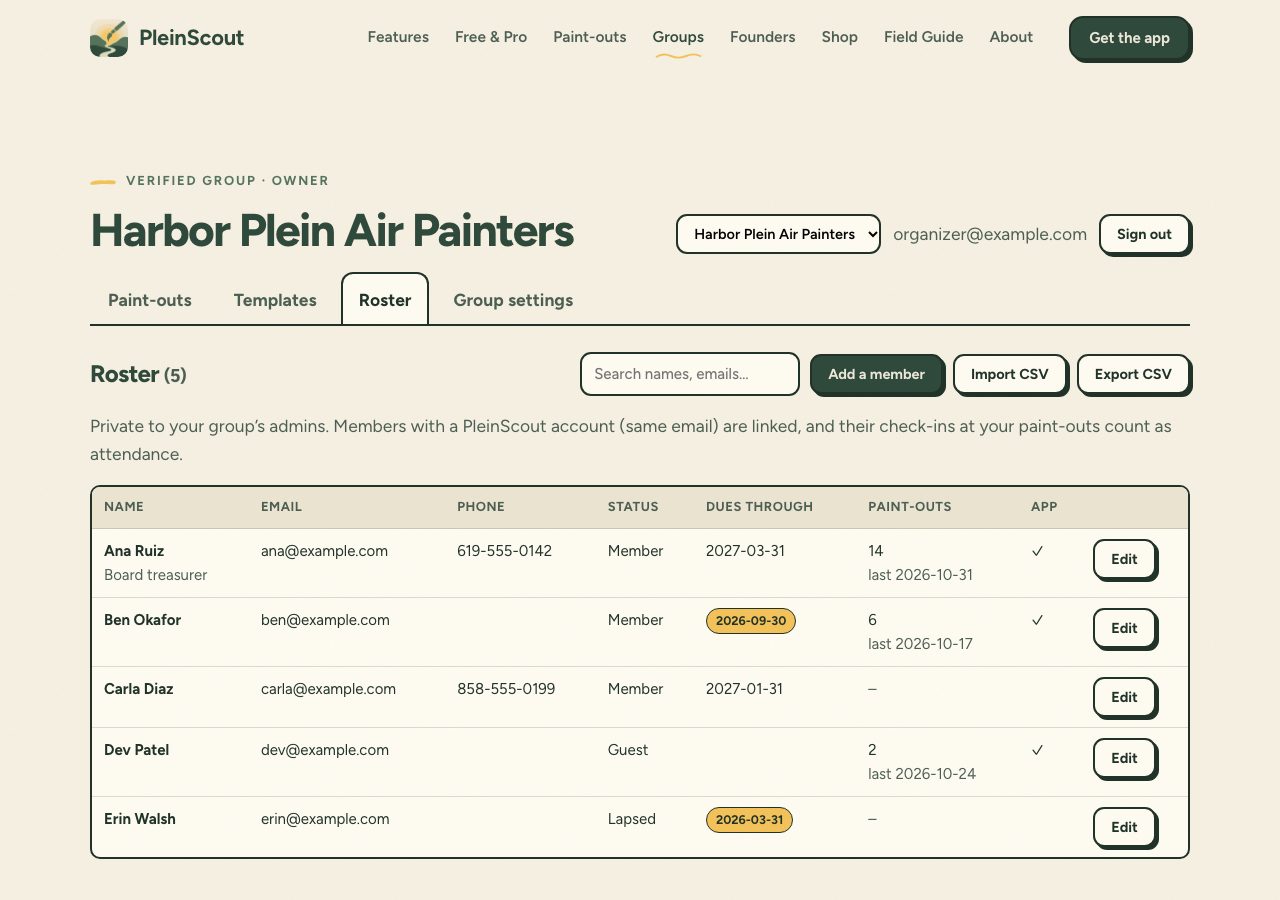
- Each person is a Member, Guest or Lapsed, with a joined date, dues paid through, and notes.
- Join requests from the “Ask to join” form on your group page wait at the top of the Roster. Click Approve to make them a member, or Decline.
- Dues. When a member’s dues-paid-through date passes, they become Lapsed the next morning (you can turn this off in Group settings). When they renew, enter the new date and they’re a member again.
- Copy emails copies every current member’s and guest’s email, ready to paste into BCC.
- If someone uses the PleinScout app with the same email, they’re linked (✓ in the App column), their RSVPs and check-ins at your paint-outs count as attendance, and they see your Group-only paint-outs and group spots.
- For a CSV import, put headings in the first row. We recognize the usual ones:
| Field | Headings that work |
|---|---|
| Name | Name, Full name, Member, or First name + Last name |
| Email, E-mail, Email address | |
| Phone | Phone, Mobile, Cell, Telephone |
| Status | Status, Type, Membership |
| Joined | Joined, Join date, Member since, Start date |
| Dues | Dues, Dues paid through, Expires, Renewal date, Paid through |
| Notes | Notes, Comments |
People whose email is already on the roster are skipped, so importing the same file twice won’t make duplicates.
Group spots
On the Group spots tab, add your group’s favorite places to paint: a name, the place, and notes like parking or who to ask for permission. Each one is saved as a private spot in your own account and shared with your admins, members and guests, so it shows on the map in their PleinScout apps. Lapsed members and people who leave the roster lose access on their own. You can also share a spot you already saved in the app.
Gallery
When painters post a painting publicly in the app at one of your paint-outs (that spot, that day), it shows in your Gallery tab and the newest 24 show on your group page under “From our paint-outs”. Click Hide on any you’d rather not show.
Step 7
Group settings, your page link and co-admins
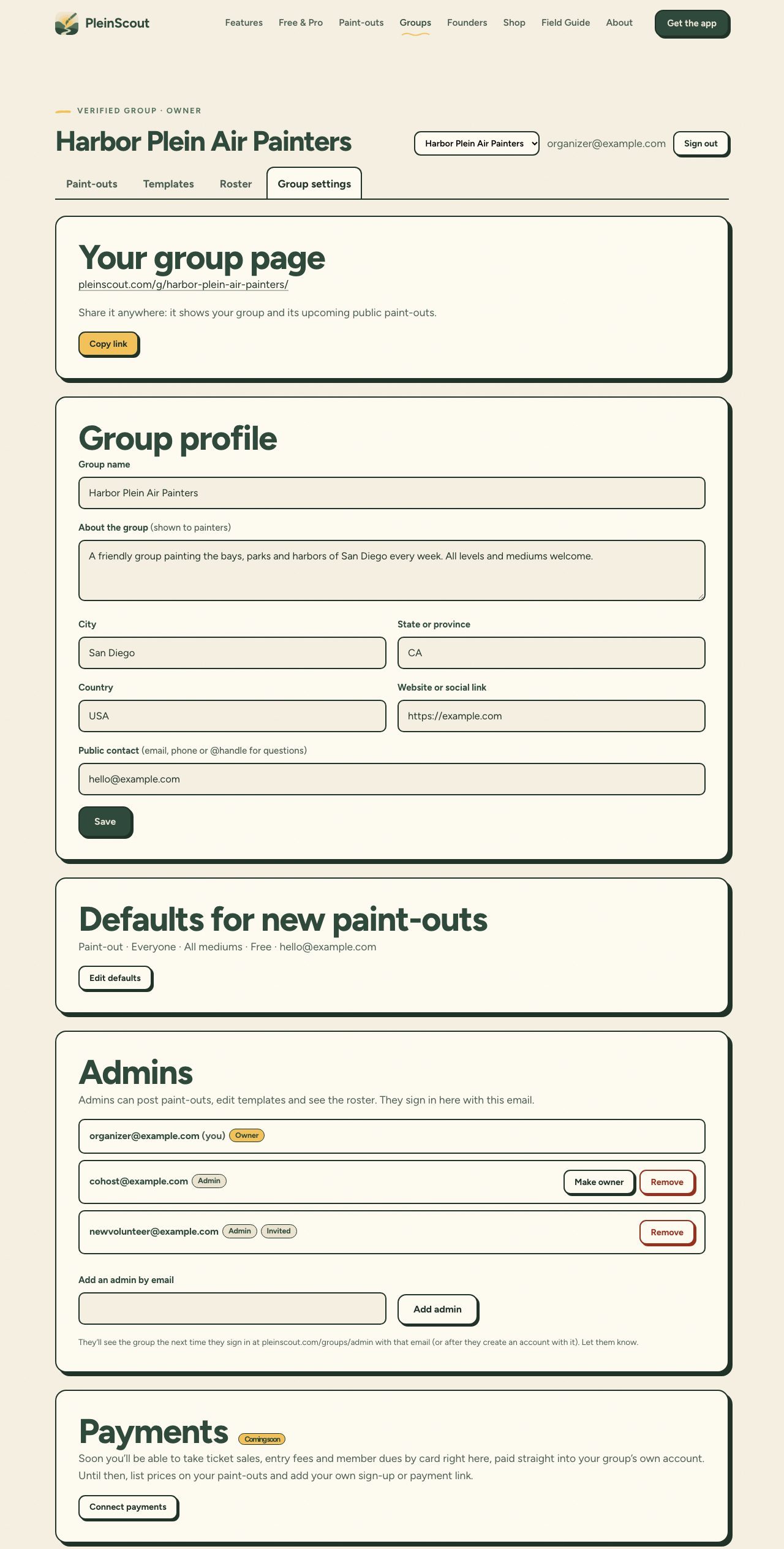
- Your group page. Once verified, your group has its own page at pleinscout.com/g/your-group-name. Copy the link for your website, newsletter or social pages.
- Group profile. Name, description, location, website and contact.
- Joining and dues. Turn the “Ask to join” form on your group page on or off, say what dues are (“$15 a year”), and add your own pay link (PayPal, Venmo, Square). Both show on your group page; the money goes straight to you.
- Group code. A code just for your members: 10% off a year of PleinScout Pro and 10% off the shop, and your group earns $10 for every yearly Pro bought with it. Ask us for one, then see sign-ups and earnings here.
- Member shop discount. Current members on a verified group’s roster get 10% off in the PleinScout shop when they sign in at checkout with the email on your roster (members with the PleinScout app get it from their first order; others once they’ve made a shop account).
- Defaults for new paint-outs. Details filled in on every new paint-out and template.
- Admins. Add co-organizers by email. They see the group the next time they sign in at pleinscout.com/groups/admin with that email, or after they create an account with it. The owner can hand the group over with Make owner.
- Payments (coming soon). Tickets, entry fees and dues by card, paid straight into your group’s own account.
Step 8
Where your paint-outs show up
Public paint-outs from verified groups appear in four places on their own:
- The PleinScout app map, where painters RSVP and get directions.
- Nearby alerts to painters in the app. For a repeating paint-out, only the first date sends an alert.
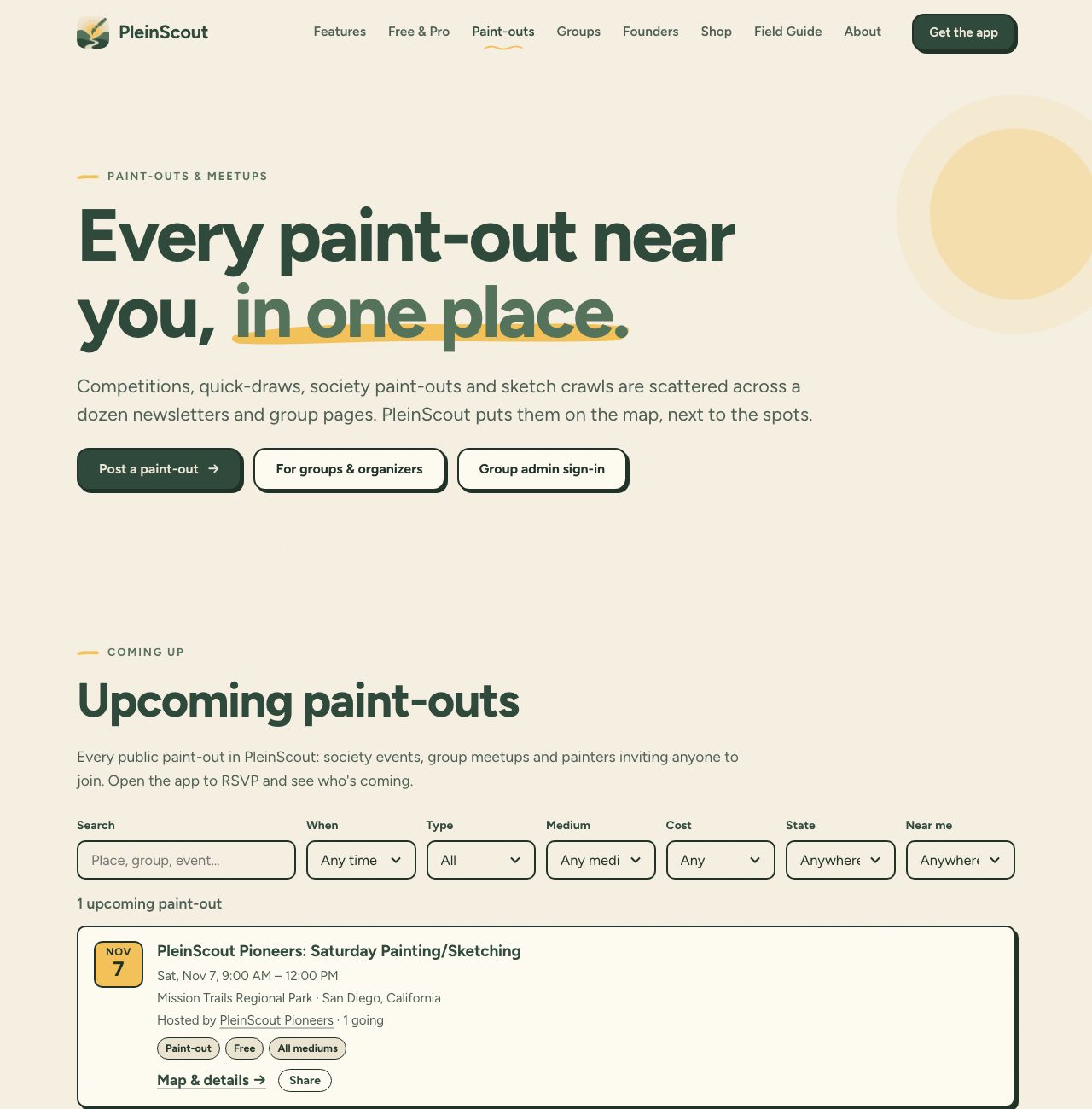
- The paint-outs page, searchable by date, type, medium, cost, state and distance, with a map and a shareable link for each.
- Your group page.
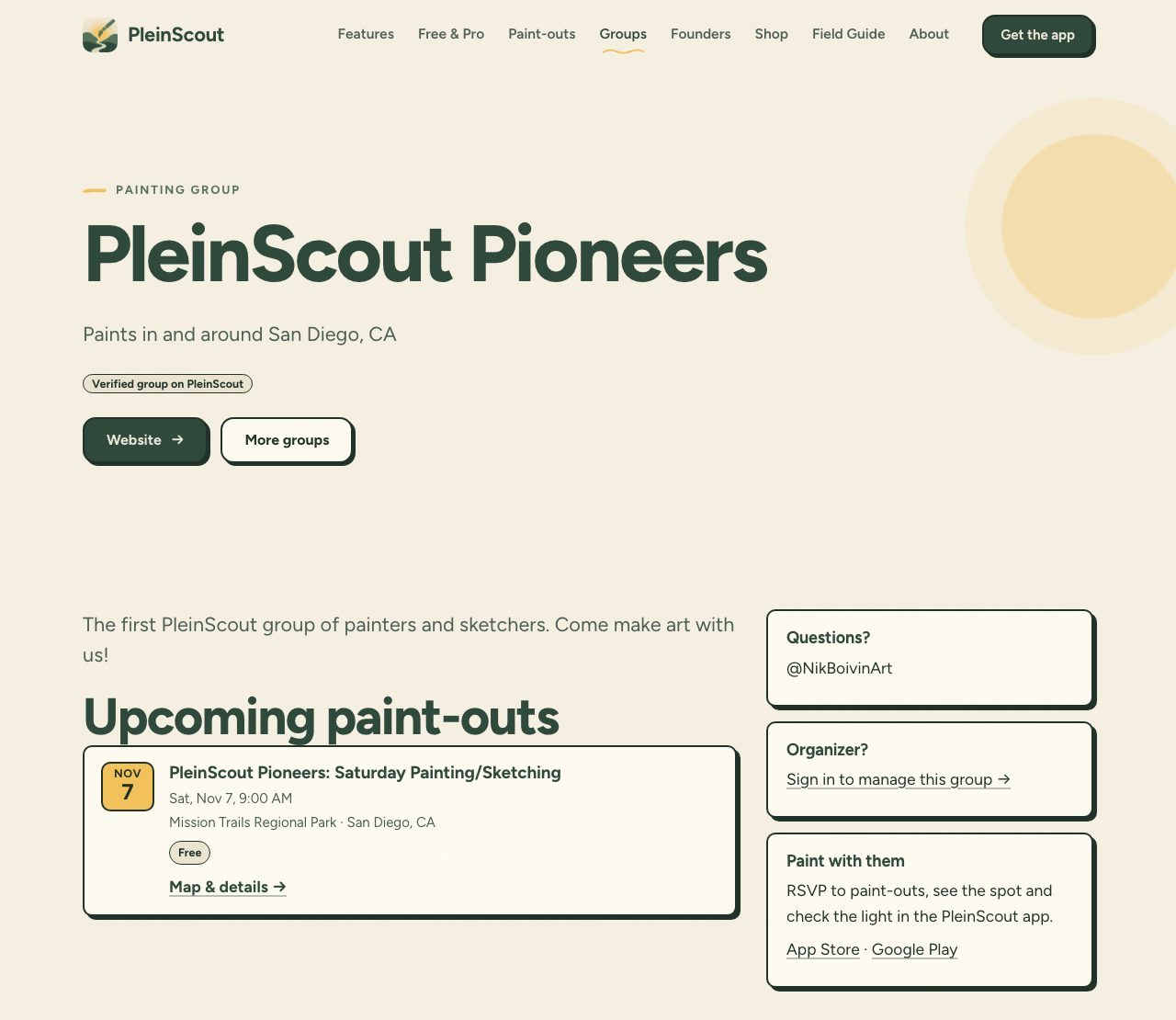
Want your group on the Groups list? Verified groups can be listed under their state. Ask us and we’ll switch it on.
Limits and help
| Groups per account | Up to 5 |
| Admins per group | Up to 20 |
| Repeating paint-outs per group | Up to 20 |
| Messages to RSVPs or the group | Up to 10 a day |
| Checking a new group | Usually within a day |
| Checking a claim | Usually within a couple of days |
Questions, a paused group, or need more room? Email help@pleinscout.com.
Screenshots of the signed-in screens show a made-up example group and example members.